
Chargeback Management Workflow beta
Step-by-Step Instructions:
1. To see your chargebacks:
➤ Log in to your Merchant Portal
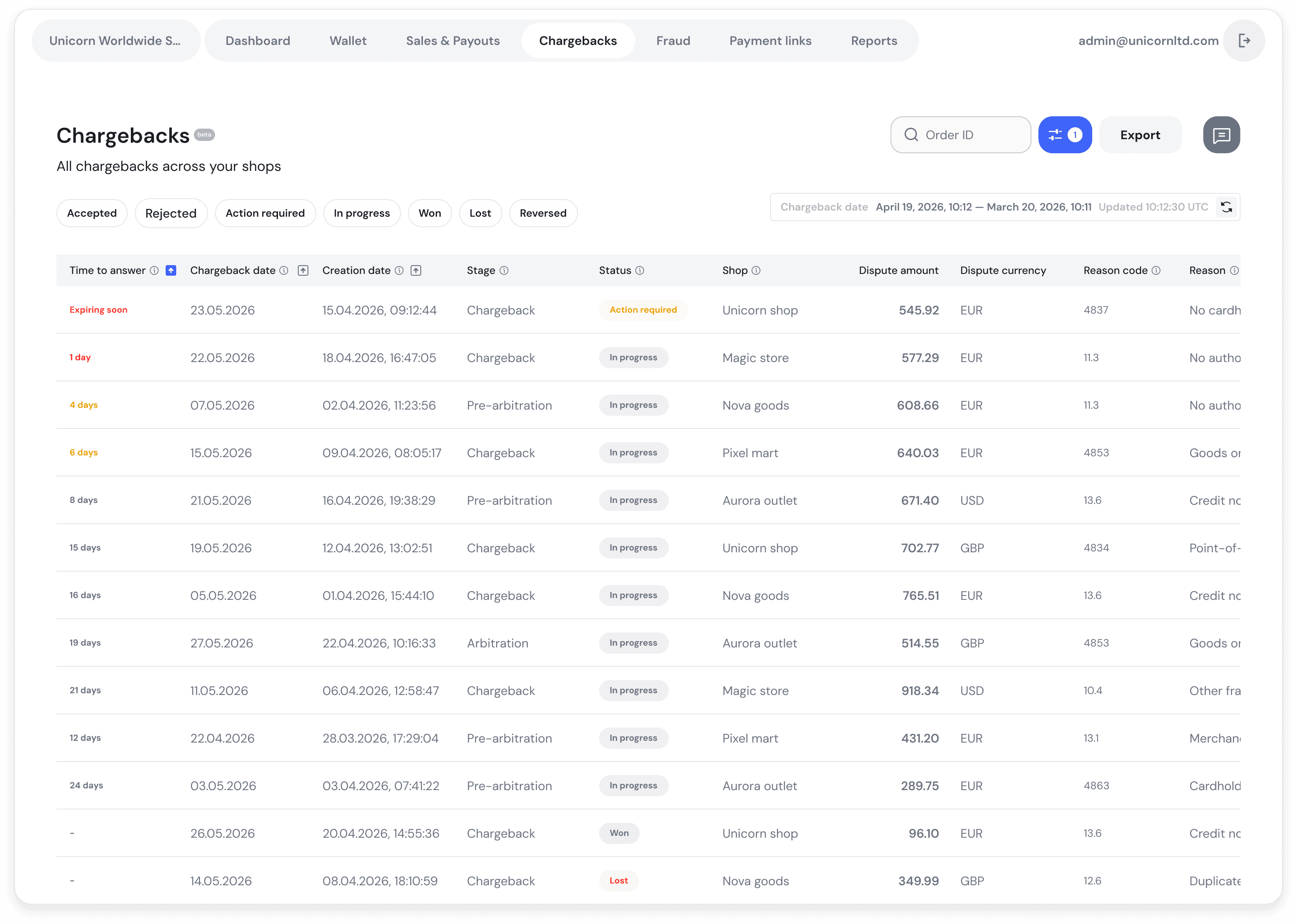
➤ Click on “Chargebacks” in the top menu. ➤ You'll land on the list of all chargebacks across your shops.
➤ By default, the list is sorted by Time to answer, so the most urgent cases appear first.
➤ Expiring soon (highlighted in red) means the chargeback will shortly become unavailable for defending. Once the time is up, the case can no longer be disputed.
➤ A dash (—) in the Time to answer column means no action is currently required from you on that case.
➤ There is no fixed deadline for all chargebacks: the time you must answer depends on the chargeback type and the card network. Always rely on the Time to answer value shown for the case.
2. Sorting the list
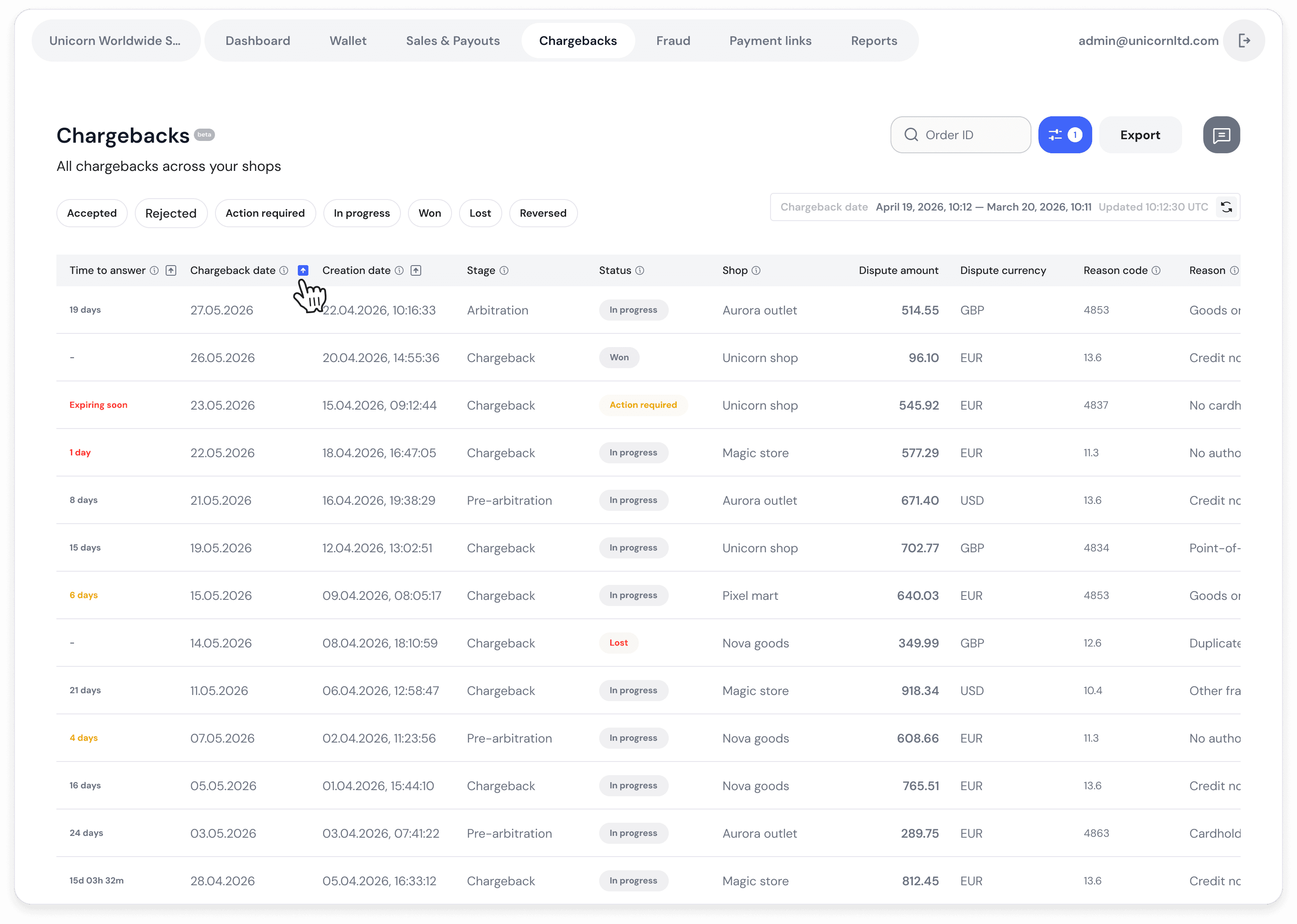
➤ You can sort the list by:
Time to answer — how much time is left to respond.
Chargeback date — the date the chargeback was received.
Creation date — the date of the original transaction.
3. Filtering by status
➤ All new chargebacks arrive in the Action required status — they require a decision from you: defend or accept.
➤ Use the status chips above the table for a quick filter: Accepted, Rejected, Action required, In progress, Won, Lost, Reversed.

The chargeback statuses you can see in the portal:
Action required — waiting for an action from you.
In progress — the case is under review by a third party.
Rejected — your defense documents were not accepted. New documents must be uploaded.
Accepted — liability was accepted by you.
Won — the chargeback was won.
Lost — the chargeback was lost.
Reversed — the chargeback was reversed by the issuing bank.
4. Selecting the period
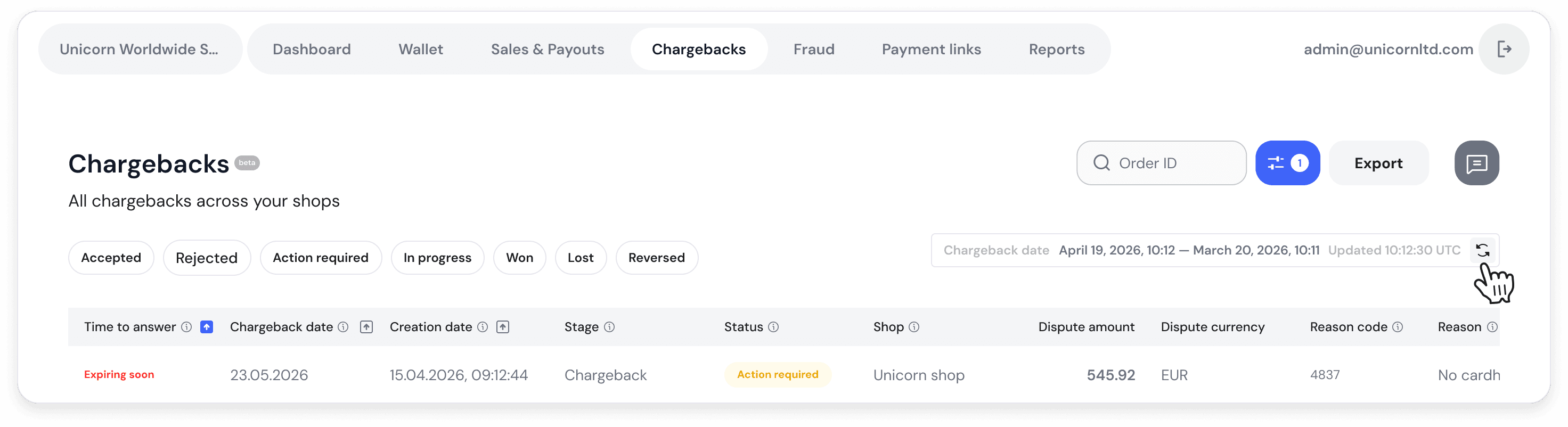
➤ The bar above the table shows the selected Chargeback date period and the time the data was last updated. Use the refresh icon next to it to reload the results.
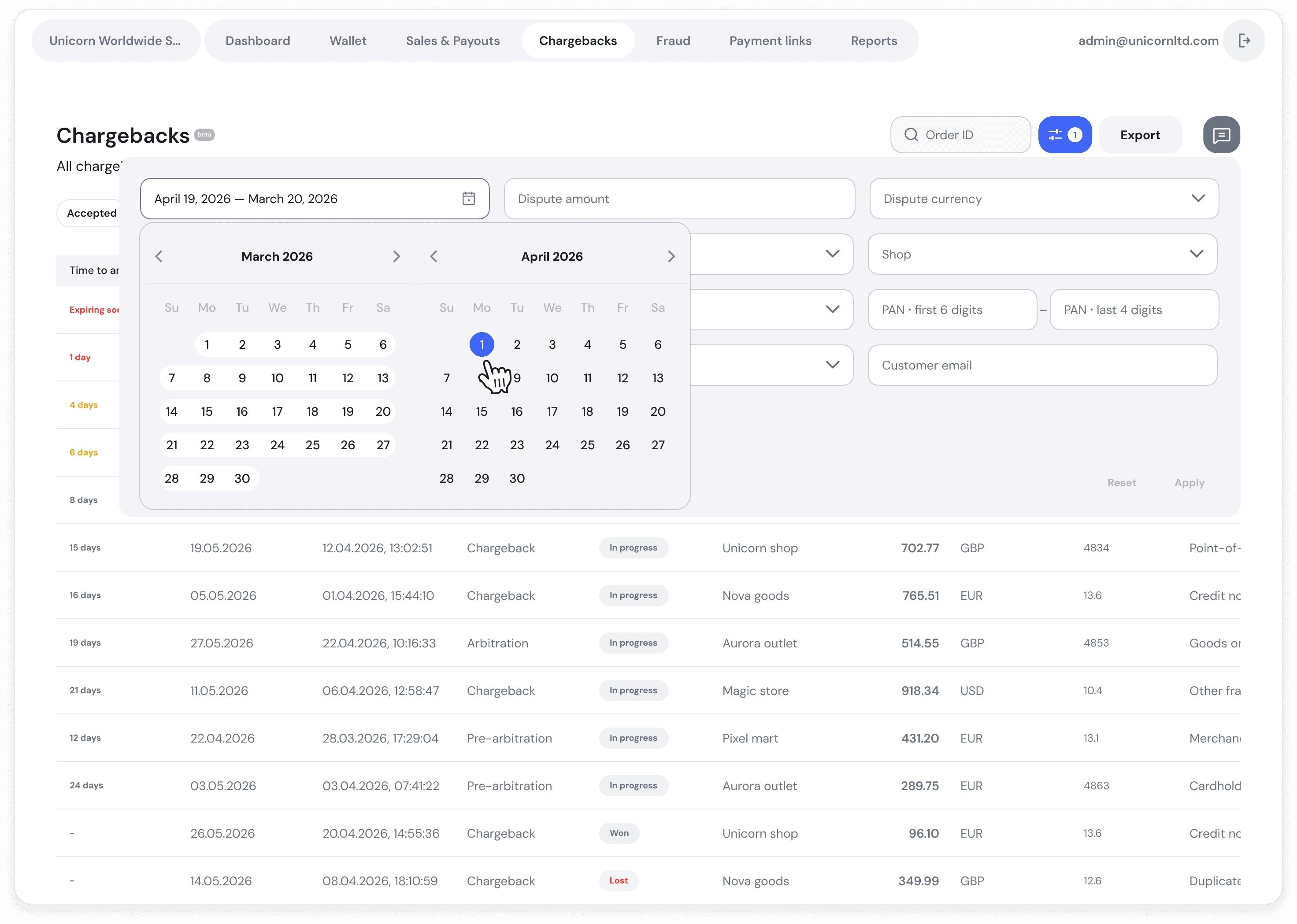
➤ To change the time period, use the filters.
5. Quick search
➤ Use the search field to find a chargeback by Order ID.

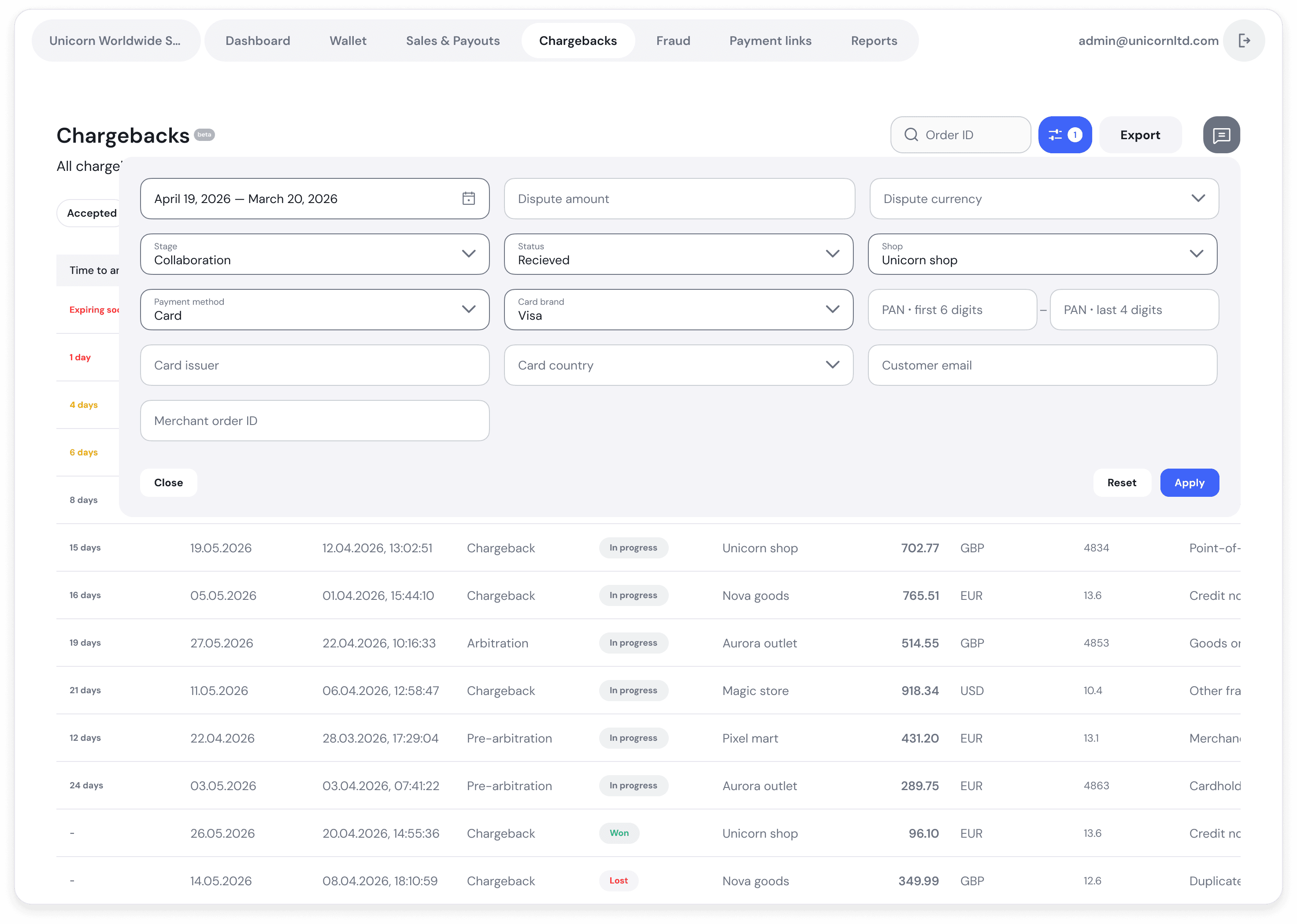
6. Additional filters
➤ Click the filter button next to the search field to open additional search fields — amount and currency, stage and status, shop, payment and card details, customer email, merchant order ID.
➤ Click Apply to apply them, Reset to clear them, Close to hide the panel.
7. Share feedback
➤ The grey button on the right opens the Share feedback form. Ask a question, report a problem, or share an idea — your message goes directly to the xpate product team.


8. Open a chargeback
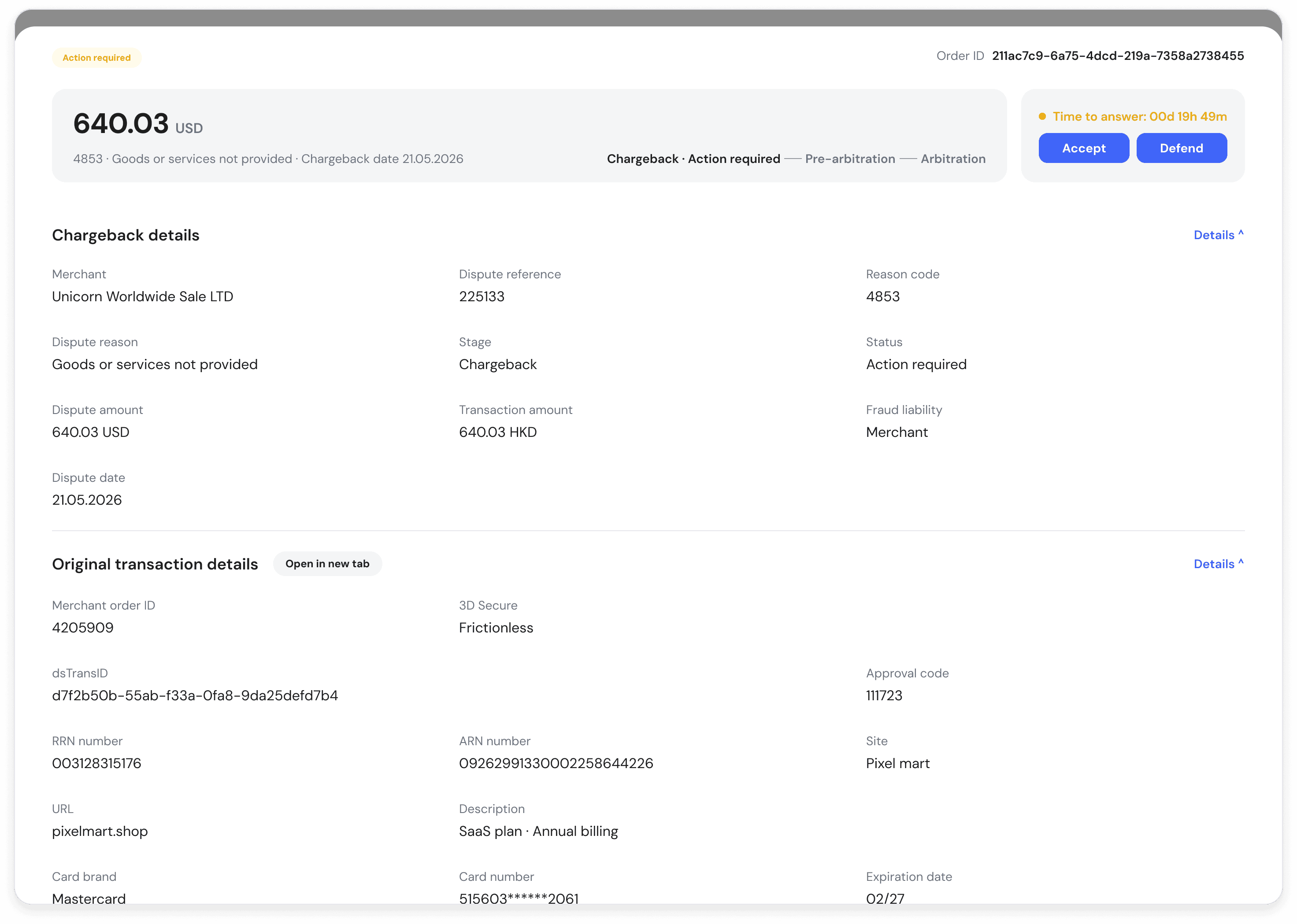
➤ Clicking on a chargeback row will open a detailed view in a new page.
➤ This page will show complete Dispute Details and Transaction Details.
9. Review the chargeback information
➤ Clicking on a chargeback row will open a detailed view in a new page.
➤ This page will show complete Dispute Details and Transaction Details.
➤ Check the reason (e.g. Services not received, Fraud, etc.).
➤ Look at the amount, chargeback date, and the time remaining to answer.
➤ Review the transaction linked to the chargeback for additional context: Transaction date, Card network, Order ID, Sale reference.
10. Choose how to respond
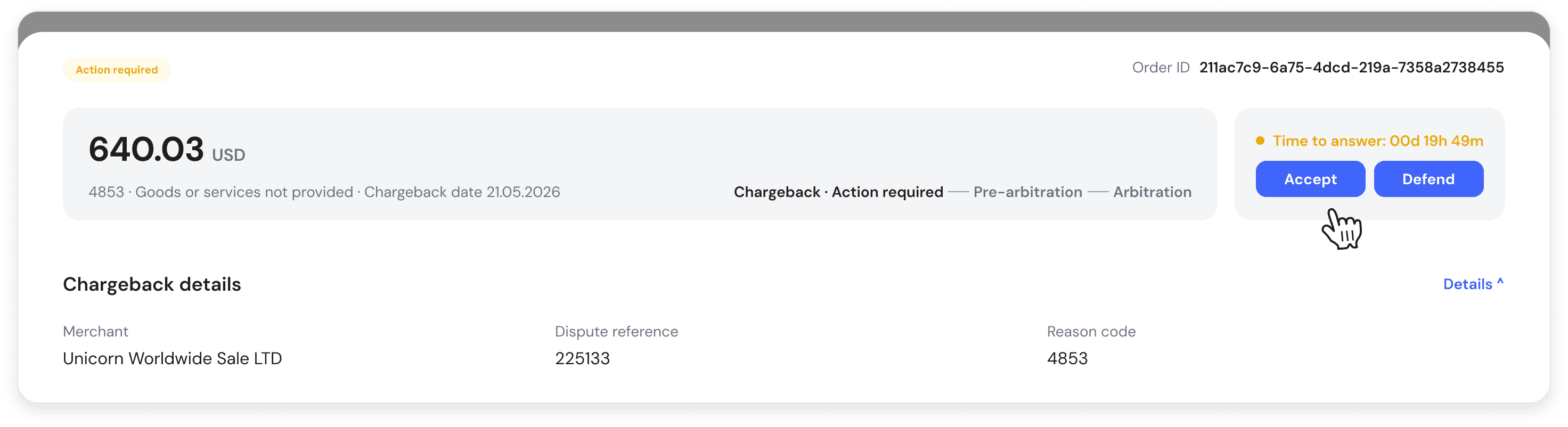
At the top of the detail page, you'll see two main action buttons:
✅ Accept Liability — Choose this if you agree with the chargeback and won't provide defense evidence.
❌ Defend Dispute — Choose this if you want to provide supporting documents to challenge the chargeback.
Tip: Always review the reason and check your documentation (e.g. receipts, customer communication, delivery proof) before deciding.
11. Follow the prompts to submit your decision
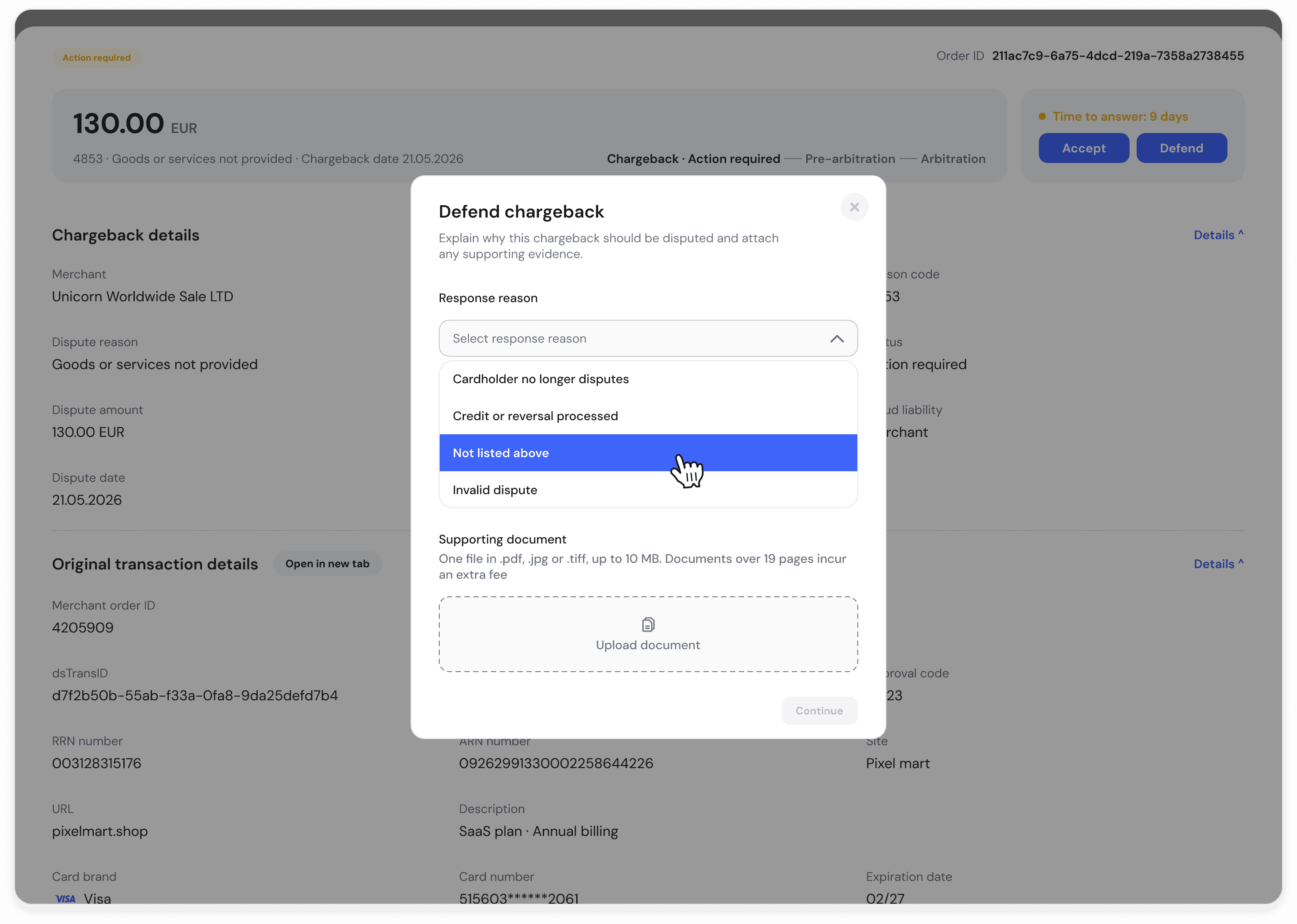
➤ If you choose "Defend Dispute", upload the required evidence as instructed.
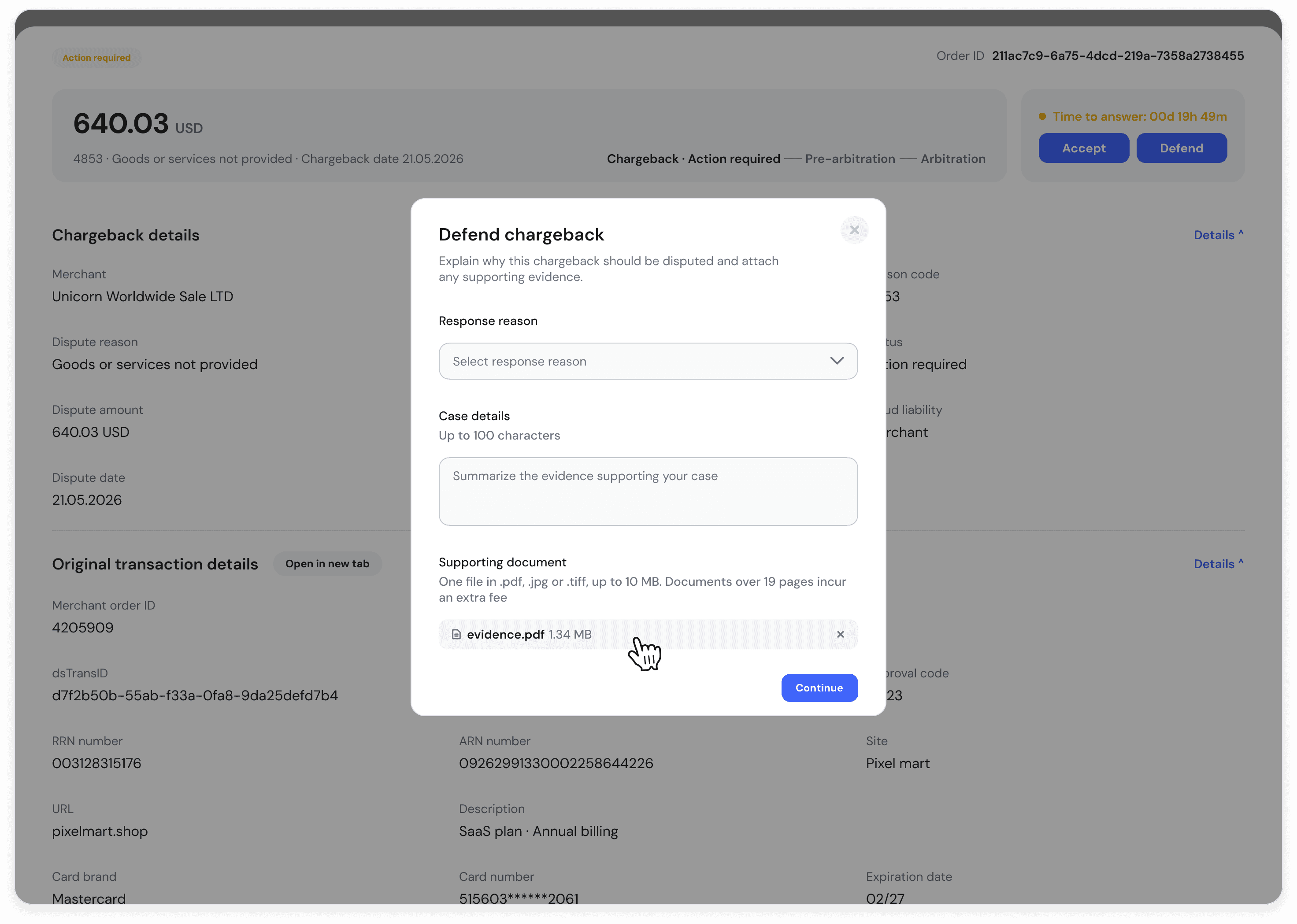
➤ For VISA disputes please select the reason "Not listed" from the response reason drop-down.
➤ For Mastercard chargebacks please select "See Corresponding Documentation/Chargeback Remedied".
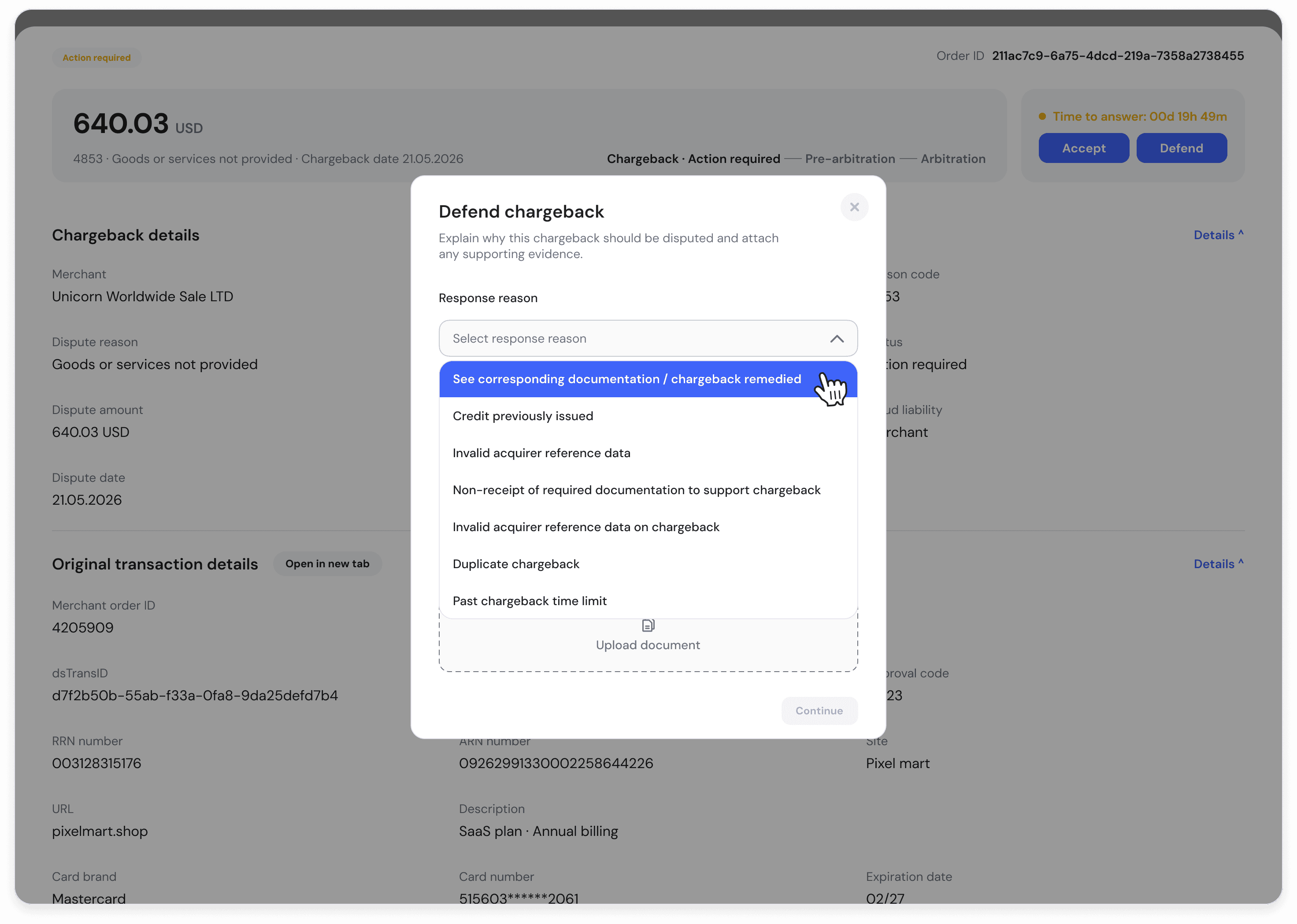
➤ For duplicate chargeback, please select "Duplicate Chargeback".
➤ Please add short comments and submit your evidence. For example: "Services were fully provided".
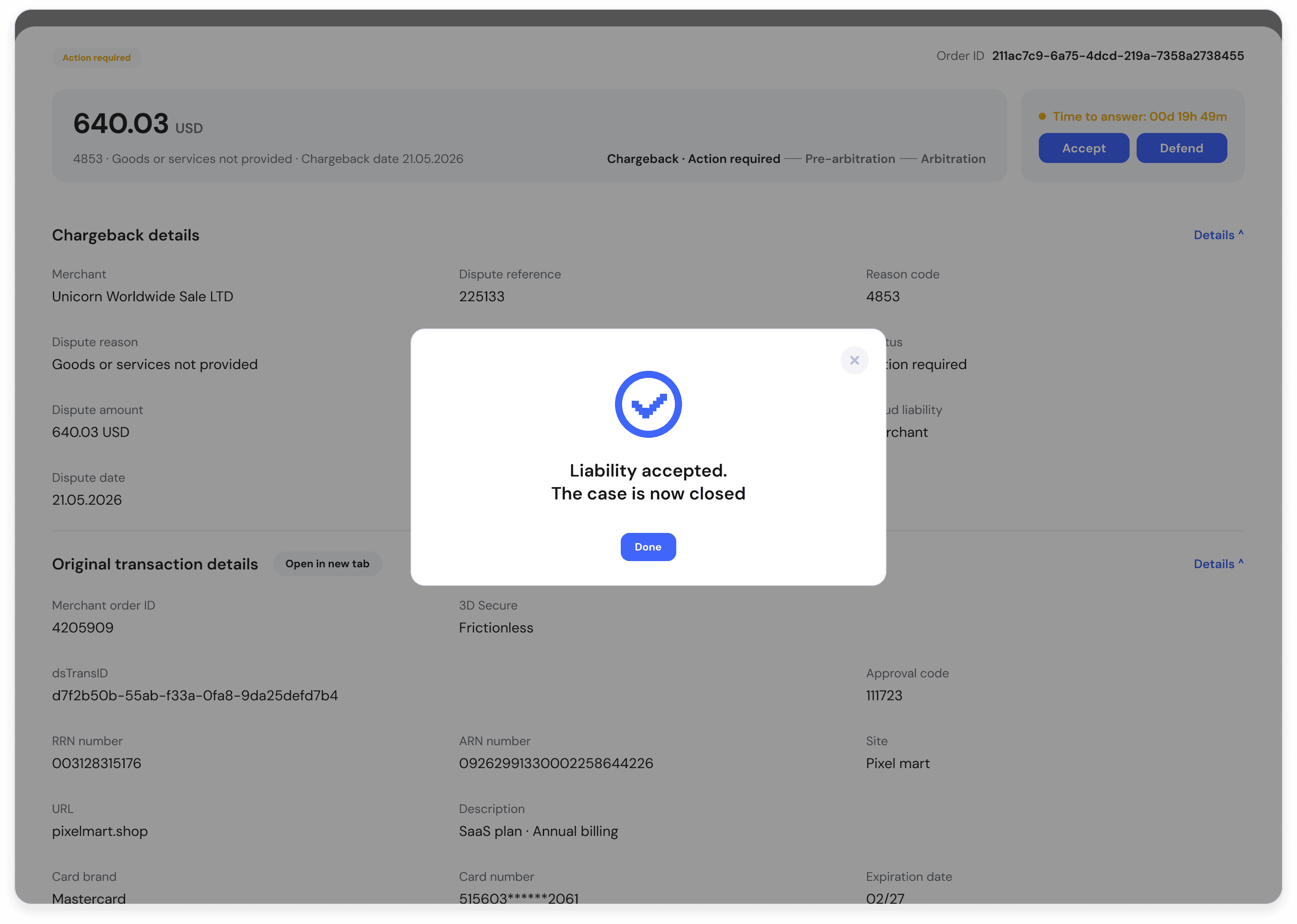
➤ You will see a pop-up window with a confirmation.
➤ If you choose "Accept Liability", the case will be closed, and the amount will not be recovered.
Important Notes:
➤ You must act within the listed "Time to answer". If the deadline passes, the case will automatically close in favour of the cardholder.
➤ If your defence documents come back as Rejected, upload new documents while time to answer is still available.
➤ If you received a chargeback but the transaction was already refunded, please let us know and we will dispute it on your behalf. (Sometimes an issuer could raise a chargeback despite it already being refunded.)